
Need Support? Call Us!
858-571-3154

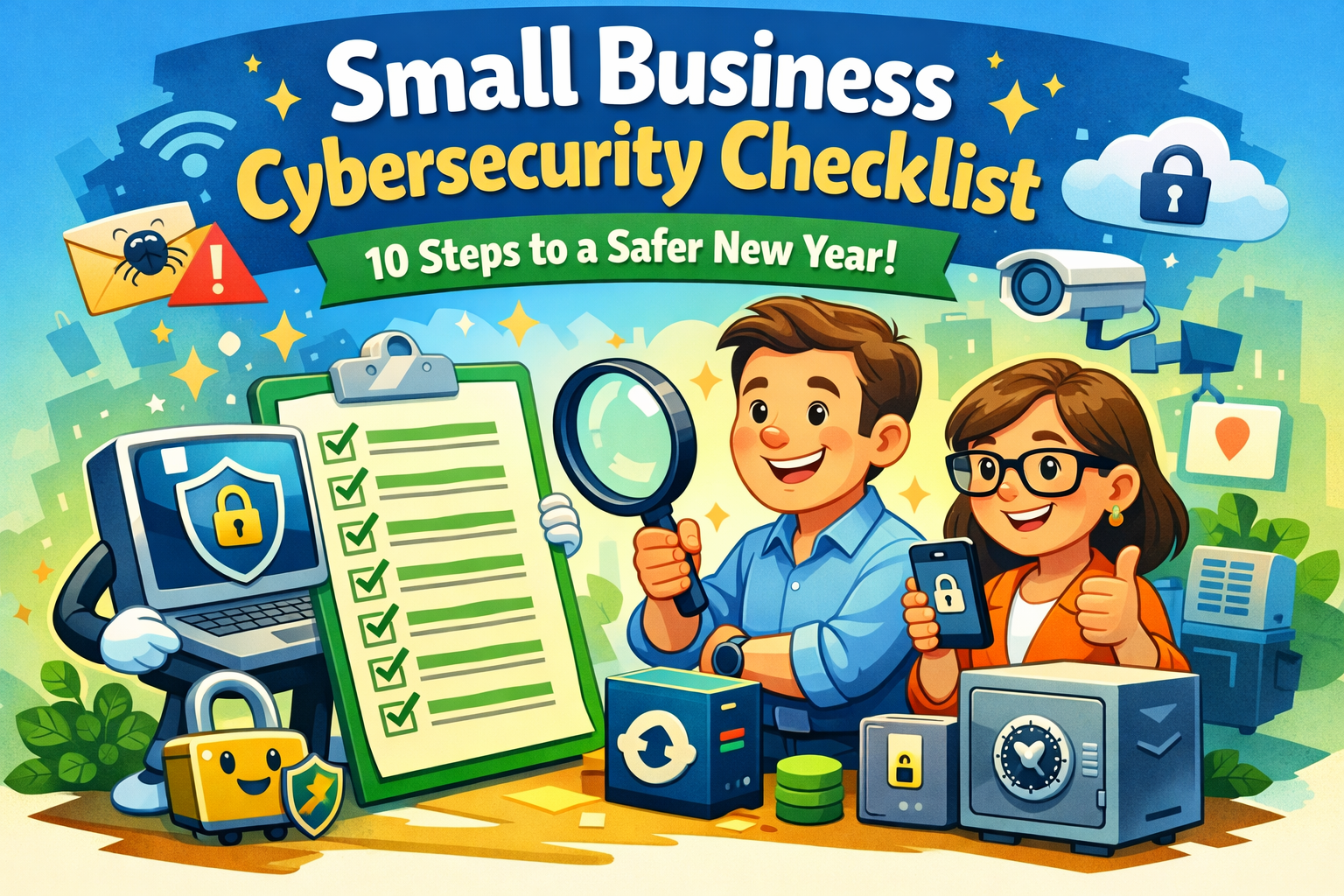
10 Security Checkups Every Small Business Should Do at the Start of the New Year
A practical guide for small business owners and employees outlining 10 essential cybersecurity checkups to reduce risk, prevent breaches, and start the new year secure.


The Best Tech Gifts for Busy Working Adults in 2025
The Best Tech Gifts for Busy Working Adults in 2025
Smart, practical, and productivity-boosting gifts they’ll actually use
Finding the perfect gift for a busy working adult can be tricky. They don’t need more clutter — they need technology that saves time, reduces stress and improves daily productivity. Whether you’re shopping for a remote professional, a frequent traveler or someone juggling work and life nonstop, the right tech gift can make a real difference.
In this 2025 tech gift guide, we highlight the best computer-related and tech gifts for busy professionals, focusing on tools that enhance productivity, organization, wellness and mobility.
Best Productivity Tech Gifts for Professionals
Elgato Stream Deck MK.2
Best for: Power users, remote workers, creatives
🔗 https://www.elgato.com/us/en/p/stream-deck/
The Elgato Stream Deck is a productivity powerhouse. With customizable buttons, professionals can launch apps, control meetings, automate repetitive tasks and manage workflows with a single tap. It’s ideal for anyone who lives in Zoom, Teams or creative software all day.
Why it’s a great gift:
✔ Saves time
✔ Reduces task switching
✔ Works across many apps
Bellroy Tech Kit Compact
Best for: Commuters, organized professionals
🔗 https://bellroy.com/products/tech-kit
This sleek, minimalist tech organizer keeps chargers, cables, earbuds and adapters neatly stored. It’s perfect for professionals who hate digging through bags to find essentials.
Why it’s a great gift:
✔ Premium materials
✔ Compact and travel-friendly
✔ Keeps work bags clutter-free
Best Mobile & Hybrid Work Tech Gifts
Apple iPad Mini
Best for: On-the-go professionals
🔗 https://www.apple.com/ipad-mini/
The iPad Mini strikes the perfect balance between power and portability. It’s great for note-taking, reviewing documents, reading or quick productivity tasks when a laptop feels too bulky.
Why it’s a great gift:
✔ Lightweight and powerful
✔ Supports Apple Pencil
✔ Excellent battery life
Cotopaxi Viaje Tech Organizer
Best for: Frequent travelers and hybrid workers
🔗 https://www.rei.com/product/251177/cotopaxi-viaje-tech-organizer
Designed for people constantly moving between home, office, and travel, this organizer offers durable construction and smart internal storage.
Why it’s a great gift:
✔ Travel-ready durability
✔ Easy access to tech gear
✔ Stylish and functional
Best Everyday Tech Gifts That Reduce Stress
Life360 Tile Bluetooth Trackers
Best for: Forgetful professionals
🔗 https://www.tile.com/
Tile trackers help busy adults keep track of keys, wallets, bags and more. If you know someone who’s always rushing out the door, this is a gift they’ll thank you for daily.
Why it’s a great gift:
✔ Saves time
✔ Easy smartphone integration
✔ Affordable and practical
Oura Ring (Gen 4)
Best for: Wellness-focused professionals
🔗 https://ouraring.com/
Busy adults often neglect sleep and recovery. The Oura Ring tracks sleep, stress, readiness and overall health insights in a sleek, non-intrusive design.
Why it’s a great gift:
✔ Discreet and stylish
✔ Actionable health data
✔ Ideal for long workdays
Best Tech Gifts Under $50
JBL Go 4 Portable Bluetooth Speaker
Best for: Home offices and casual workspaces
🔗 https://www.jbl.com/
Small but powerful, this speaker is perfect for background music during work hours or quick breaks between meetings.
Why it’s a great gift:
✔ Affordable
✔ Compact and durable
✔ Great sound for its size
Pinch Provisions Tech Kit
Best for: Stocking stuffers or budget gifts
🔗 https://pinchprovisions.com/
This handy kit includes essentials like screen wipes, cable wraps, webcam covers and more — all things busy professionals forget they need.
Why it’s a great gift:
✔ Budget-friendly
✔ Practical everyday items
✔ Compact and thoughtful
How to Choose the Right Tech Gift for Busy Adults
When shopping for working professionals, focus on gifts that:
Save time or reduce friction
Support hybrid or remote work
Improve organization
Enhance wellness without adding complexity
Avoid gimmicks — practical tech always wins.
Final Thoughts: Tech Gifts That Truly Matter
The best tech gifts for busy working adults aren’t flashy — they’re useful, reliable and seamlessly fit into daily routines. From productivity tools like the Stream Deck to wellness wearables like the Oura Ring, these gifts help professionals work smarter, not harder.
If you want to give a gift that actually gets used all year long, you can’t go wrong with smart, thoughtful technology.







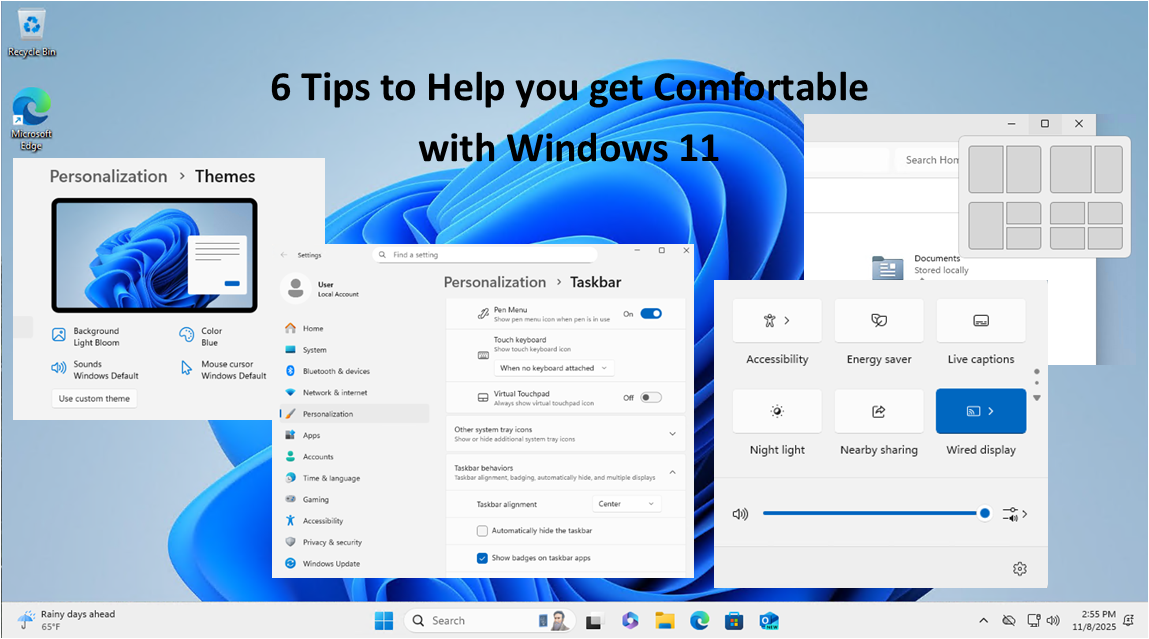
6 Tips to Help You Adjust to Your Recent Upgrade to Windows 11
6 Tips to Help You Adjust to Your Recent Upgrade to Windows 11
Just switched to Windows 11? Here are six simple tips to help you adjust to the new look and features — without losing your Windows 10 comfort zone.
1. Get Used to the New Start Menu
When you first open Windows 11, you’ll probably notice the Start button isn’t where it used to be — it’s now in the middle of the screen!
If that throws you off, you can move it back:
- Right-click the taskbar and choose Taskbar settings
- Scroll to Taskbar behaviors
- Change Taskbar alignment to Left
Boom — just like Windows 10 again.
2. Snap Layouts Make Multitasking a Breeze
If you like having multiple windows open (emails, browser tabs, spreadsheets), you now have Snap Layouts.
Just hover your mouse over the maximize button on any window — you’ll see layout options that let you neatly arrange your apps on the screen.
It’s super handy for side-by-side work or video calls.
3. Meet the New Quick Settings
Remember the old Action Center from Windows 10? It’s gone.
Now, just click the Wi-Fi, sound, or battery icons in the bottom-right corner — that’s your new Quick Settings panel.
From here, you can turn on Bluetooth, change brightness, or go into Focus mode to block distractions.
You can even customize it with the shortcuts you use most.
4. Make Windows 11 Feel Like “You”
One of the best things about Windows 11 is how personal it can look.
Go to Settings → Personalization → Themes and explore the built-in color schemes and wallpapers.
Or press Win + W to open the Widgets panel, where you can pin your favorite news, weather, or calendar items.
A few clicks and your desktop feels familiar again — but fresher.
5. Check Out the New Microsoft Store
The Microsoft Store has had a major overhaul. It’s faster, simpler, and now includes apps like Zoom, Canva, and even Android apps (through the Amazon Appstore).
It’s finally worth exploring — and a safer way to download software without hunting around random websites.
6. Take a Minute to Check Your Security
Windows 11 added more ways to keep your computer safe — but they’re easy to overlook.
Head to Settings → Privacy & security, and make sure you:
- Turn on Windows Hello for faster, password-free logins
- Enable BitLocker if you’re on Windows 11 Pro
- Use Smart App Control to block sketchy downloads
It only takes a few minutes, and it’s worth it for peace of mind.
Final Thoughts
Upgrading to a new version of Windows can feel strange at first — kind of like moving furniture in your favorite room. But once you know where everything is, Windows 11 starts to feel smoother, cleaner, and more modern.
Play around, personalize it, and before long, you’ll wonder how you ever used anything else. (okay, not really)

The End of Windows 10 — What You Need to Know and Do Now
The End of Windows 10 — What You Need to Know and Do Now
Microsoft has officially announced that support for Windows 10 will end on October 14, 2025. That means no more security updates, bug fixes, or technical support from Microsoft after that date*. If you’re still using Windows 10—at home or at work—it’s time to start planning your next move. Ignoring this deadline could leave your system vulnerable to security threats and software compatibility issues.
In this article, we’ll walk you through:
- Why this end-of-support matters
- How to determine if your PC can be upgraded
- What upgrade options are available
- Estimated costs involved
- Why moving to a supported operating system is essential
Why Does Windows 10 End of Support Matter?
Just like previous Windows versions before it, Windows 10 is reaching the end of its lifecycle. After October 14, 2025, Microsoft will no longer provide critical security patches*, leaving systems susceptible to viruses, malware, and zero-day exploits. Unsupported operating systems also risk compatibility issues with new software, hardware and drivers, reducing productivity and increasing frustration for users.
If your computer is connected to the internet—or even a local network—it’s a security risk to continue using an unsupported OS.
Can Your PC Be Upgraded?
Before making any decisions, you need to determine whether your current machine can be upgraded to Windows 11, Microsoft’s latest operating system. Microsoft provides a free tool called the PC Health Check app that evaluates your hardware and tells you if it meets the minimum requirements for Windows 11.
Key system requirements include:
- A compatible 64-bit processor (1GHz or faster, 2 or more cores)
- 4GB of RAM or more (8GB recommended)
- 64GB or more of storage
- UEFI firmware with Secure Boot**
- TPM 2.0 (Trusted Platform Module)**
You can download the PC Health Check tool here:
https://www.microsoft.com/en-us/windows/windows-11#pchealthcheck
If your PC doesn’t meet these requirements, you may need to consider replacing the device entirely.
Upgrade Costs and Options
If Your PC is Compatible:
- You can upgrade to Windows 11 for free if you have a valid Windows 10 license. Most users will simply download the installer from Microsoft or use Windows Update.
- Backup your files and settings beforehand, just in case.
If Your PC is Not Compatible:
- You’ll likely need a new computer. The good news is that entry-level Windows 11 PCs start at around $300–$500, with more powerful business and gaming systems ranging from $800–$2,000+.
- Many manufacturers are offering trade-in programs or discounts on new PCs to ease the transition.
* Extended Support Option (for Businesses):
Microsoft is offering a paid Extended Security Updates (ESU) program for organizations that cannot upgrade all machines by the deadline for $30. However, this is meant as a temporary solution (1 year) and won’t include feature updates or tech support. There is also a free ESU available, but it requires using Microsoft OneDrive to backup the Windows 10 system. See this article on theverge.com.
** Bypassing TPM 2.0 and Secure Boot Requirements:
There are ways of bypassing some of the earlier requirements of upgrading to Windows 11. Although a bit technical, you can read more about this at this website or contact an IT professional to perform the upgrade of ‘incompatible’ systems to Windows 11.
Why Upgrading Matters
1. Security:
Modern threats evolve constantly. Without updates, you’re a sitting duck for ransomware, spyware, and hackers.
2. Compatibility:
New software and apps will increasingly require Windows 11 or newer. Web browsers and productivity tools will start phasing out support for Windows 10.
3. Performance & Features:
Windows 11 includes better support for hybrid work, improved UI, virtual desktops, gaming enhancements, and optimized battery life for laptops.
4. Compliance:
For businesses, continuing to use unsupported software could violate data protection regulations and industry compliance standards (e.g., HIPAA, GDPR, PCI).
What Should You Do Now?
Check your PC with the PC Health Check tool.
Start backing up your data regularly.
Budget for a new PC if needed.
Plan for deployment and user training if you’re upgrading multiple systems in a business.
Stay informed—follow Microsoft updates for any changes or extensions to their timeline.
In Summary
October 14, 2025, is closer than it seems and the consequences of ignoring it are real. Whether you’re an individual user, a small business owner, or an IT professional, taking action now ensures a smooth transition and a secure computing future.
If you have questions about upgrading or selecting a new PC, consult a trusted IT provider like Infinity Networking or visit Microsoft’s Windows 11 page to get started. Don’t wait until your machine becomes a liability.

How to Be a Smart, Informed Social Media Consumer in Today’s Challenging Times
How to Be a Smart, Informed Social Media Consumer in Today’s Challenging Times
Let’s be real, social media is a wild place. One minute you’re watching a dog rescue video that melts your heart and the next you’re deep in a thread arguing about conspiracy theories you didn’t even know existed. With the sheer amount of content flying at us every second it’s easy to get overwhelmed—or worse, misled. That’s why learning to be a smart, objective consumer of social media is essential. Not just so you don’t get duped, but so you can help stop the spread of misinformation and online toxicity.
In this past week, especially, the posts in social media have been pushing us all to our emotional limits.
The first step to being more media-savvy is simple: pause before you share. That catchy headline or viral graphic may look convincing but it could be totally fake or wildly misleading. A lot of misinformation is designed to provoke a quick emotional response—anger, fear, outrage—so people will share it without thinking. If something seems shocking or too good (or bad) to be true, take a beat and check the source. Is it a legit news outlet? Does the article actually back up the claim in the headline? A quick search can often reveal whether it’s news or just noise.
There have been numerous instances this week of pictures and videos from years ago trying to be passed off as today’s news. Be skeptical. And when someone creates a new post (especially with “BREAKING” as the first word) be sure they are referencing the source of that “breaking” news.
Then there’s the issue of clickbait and engagement traps. These are posts designed solely to grab your attention and rack up views, likes or shares. Think “You’ll Never Believe What Happened Next!” or overly emotional content that’s engineered to go viral. Some accounts—even ones that seem reputable—make their money off your engagement, not your understanding. That doesn’t mean you can’t enjoy fun or lighthearted content, but it does mean being aware of when you’re being manipulated for clicks.
It also helps to know when you’re being nudged toward a political or social agenda. Not all of this is bad—people use platforms to raise awareness and advocate for real issues—but it’s good to notice when content is steering you, rather than informing you. Look out for overly simplified arguments, loaded language, or posts that demonize “the other side.” These are classic signs of polarizing content designed to spark outrage and build echo chambers, not foster understanding. If everyone in the comments agrees completely—or is viciously attacking dissenters—it’s worth asking: is this post encouraging critical thinking, or just tribalism?
Being a smart consumer also means diversifying your feed. If all your content is coming from the same few voices, you’re only seeing one slice of reality. Try following a mix of perspectives (as long as they’re based in fact) to get a fuller picture of complex issues. Algorithms tend to show you more of what you already like or agree with, which feels comfortable but can narrow your worldview. Popping that filter bubble takes a little effort, but it’s worth it if you want to stay grounded. Sometimes sources of news from reporters from other countries offer less-biased (I wouldn’t say unbiased) viewpoints.
On top of all that, be aware that not every account is run by a real person with good intentions. Some social media activity comes from bots or coordinated campaigns—foreign or domestic—that are specifically designed to stir division, spread falsehoods, or undermine trust in institutions. These accounts often post inflammatory content, repeat talking points across multiple platforms, or engage in mass commenting to amplify certain narratives. If something feels oddly robotic, overly repetitive, or just a little too eager to provoke conflict, it might not be an average user at all. Tools like Bot Sentinel or just a quick look at posting patterns can help you spot these digital agitators.
Lastly, don’t forget the human side. Social media has a way of making us forget that real people are behind the screen (except maybe in the case cited above). Before you comment or share, ask yourself: would I say this to someone’s face? Is this helping or hurting the conversation? Being an objective, smart consumer isn’t just about fact-checking—it’s also about empathy, balance, and responsibility. We all shape the internet with our clicks, likes, and shares. Let’s make it a space that’s a little smarter and a lot kinder.

6 Ways Business Owners Can Start Using AI Today
6 Ways Business Owners Can Start Using AI Today
Artificial Intelligence (AI) is no longer just a futuristic concept—it’s a game-changing tool that businesses of all sizes can leverage to streamline operations, enhance customer experiences, and increase profitability. If you’re a business owner wondering how to integrate AI into your operations, this guide will show you how to use AI in business effectively. Here are six actionable steps to get started:
1. Automate Repetitive Tasks
AI-powered tools can handle mundane and time-consuming tasks such as data entry, email responses, scheduling, and invoicing. Tools like Zapier, Microsoft Power Automate, and AI-driven chatbots can free up valuable time, allowing you and your team to focus on strategic tasks that drive growth.
2. Enhance Customer Support with AI Chatbots
AI chatbots can provide instant responses to customer inquiries, improving customer satisfaction and reducing response times. Platforms like ChatGPT, Drift, and Intercom allow businesses to automate customer support, answer frequently asked questions, and even assist with sales inquiries.
3. Leverage AI for Data-Driven Decision Making
AI can analyze vast amounts of data to identify trends, predict customer behavior, and provide actionable insights. Business intelligence tools like Tableau, Google Analytics, and IBM Watson can help you make informed decisions based on real-time data, ultimately leading to smarter business strategies.
4. Optimize Marketing with AI-Powered Analytics
AI can significantly improve your marketing efforts by personalizing content, optimizing ad campaigns, and analyzing customer engagement. AI-driven tools like HubSpot, Hootsuite, and Persado use machine learning to enhance social media management, email marketing, and content creation.
5. Implement AI in Hiring and HR Processes
Recruiting and HR processes can be streamlined with AI-driven software that screens resumes, schedules interviews, and assesses candidate suitability. Tools like LinkedIn Talent Insights, HireVue, and Pymetrics help businesses find the right talent efficiently while reducing bias in hiring decisions.
6. Improve Cybersecurity with AI
Cyber threats are a growing concern for businesses, and AI can help safeguard sensitive information by detecting anomalies, preventing fraud, and mitigating risks. Solutions like Darktrace, Symantec, and IBM Security use AI-driven algorithms to monitor systems and identify potential security breaches before they cause damage.
Final Thoughts
Embracing AI in your business doesn’t have to be overwhelming. Start small by incorporating AI-driven tools that align with your business goals. Whether you want to enhance customer service, streamline operations, or improve marketing strategies, AI can help you stay competitive in today’s fast-paced digital landscape.
Ready to integrate AI into your business? Explore the available AI-powered tools and take the first step toward innovation today!
Are you new to AI? We offer online, self-paced courses to learn all about popular AI tools and how they are used. Sign up for our partnered training with Bigger Brains to learn about AI and many more topics!
