
Need Support? Call Us!
858-571-3154

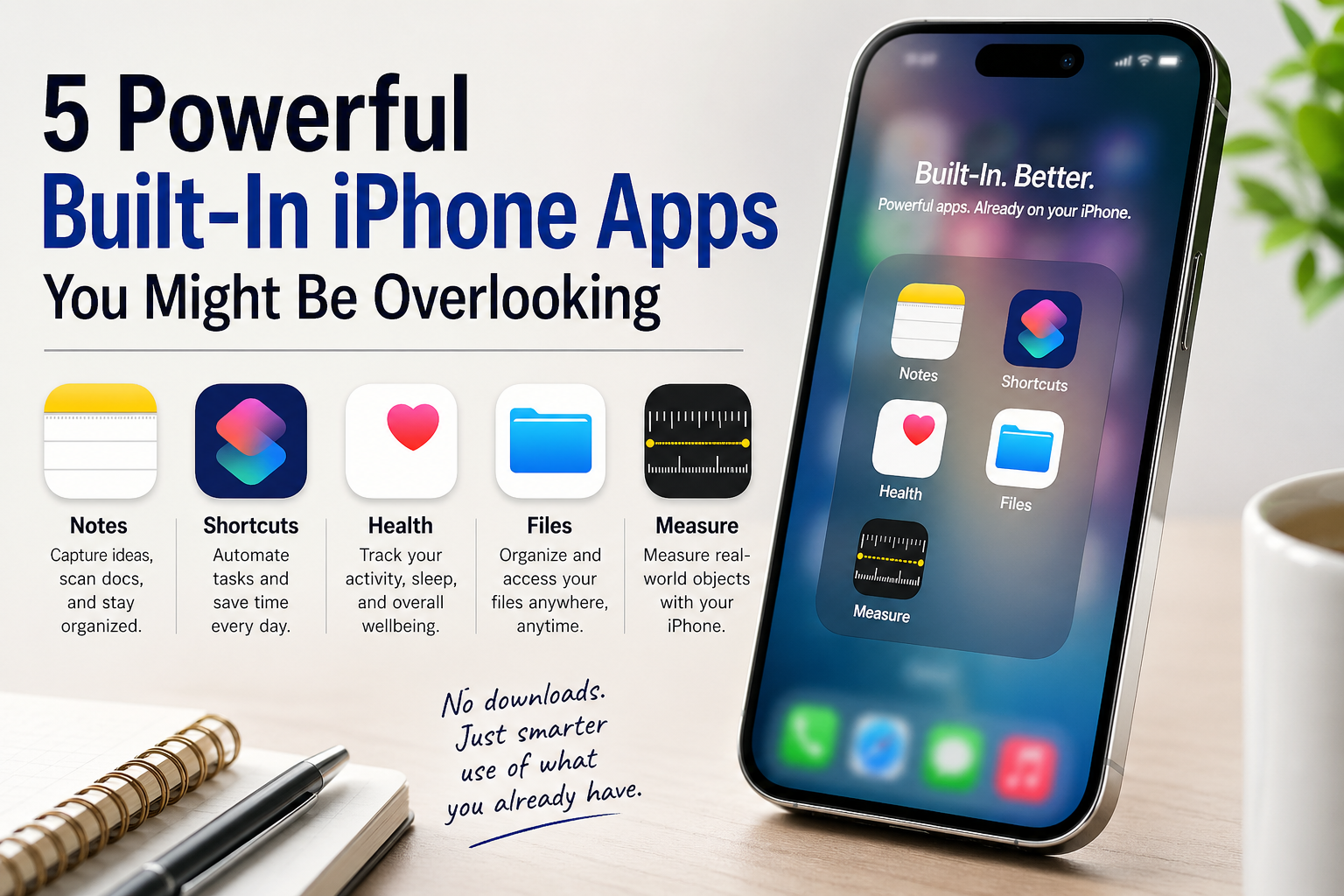
5 Powerful Built-In iPhone Apps You Might Be Overlooking
Your iPhone already includes powerful apps that many people overlook. Discover how Notes, Shortcuts, Health, Files, and Measure can help you stay organized, save time, and get more from your device without downloading anything new.

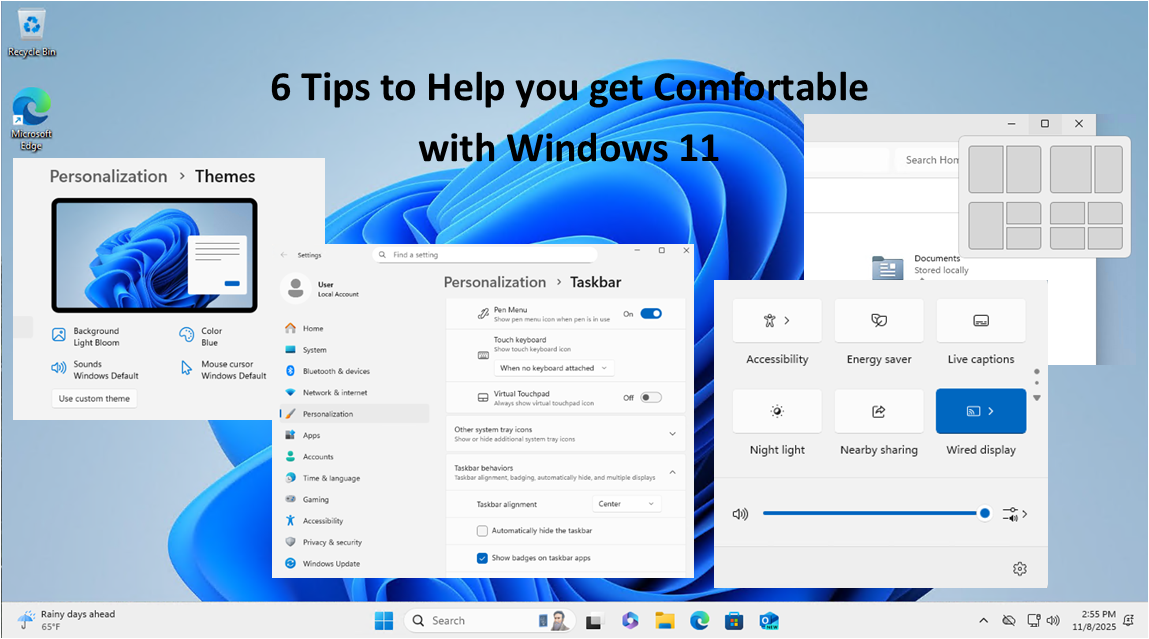
6 Tips to Help You Adjust to Your Recent Upgrade to Windows 11
6 Tips to Help You Adjust to Your Recent Upgrade to Windows 11
Just switched to Windows 11? Here are six simple tips to help you adjust to the new look and features — without losing your Windows 10 comfort zone.
1. Get Used to the New Start Menu
When you first open Windows 11, you’ll probably notice the Start button isn’t where it used to be — it’s now in the middle of the screen!
If that throws you off, you can move it back:
- Right-click the taskbar and choose Taskbar settings
- Scroll to Taskbar behaviors
- Change Taskbar alignment to Left
Boom — just like Windows 10 again.
2. Snap Layouts Make Multitasking a Breeze
If you like having multiple windows open (emails, browser tabs, spreadsheets), you now have Snap Layouts.
Just hover your mouse over the maximize button on any window — you’ll see layout options that let you neatly arrange your apps on the screen.
It’s super handy for side-by-side work or video calls.
3. Meet the New Quick Settings
Remember the old Action Center from Windows 10? It’s gone.
Now, just click the Wi-Fi, sound, or battery icons in the bottom-right corner — that’s your new Quick Settings panel.
From here, you can turn on Bluetooth, change brightness, or go into Focus mode to block distractions.
You can even customize it with the shortcuts you use most.
4. Make Windows 11 Feel Like “You”
One of the best things about Windows 11 is how personal it can look.
Go to Settings → Personalization → Themes and explore the built-in color schemes and wallpapers.
Or press Win + W to open the Widgets panel, where you can pin your favorite news, weather, or calendar items.
A few clicks and your desktop feels familiar again — but fresher.
5. Check Out the New Microsoft Store
The Microsoft Store has had a major overhaul. It’s faster, simpler, and now includes apps like Zoom, Canva, and even Android apps (through the Amazon Appstore).
It’s finally worth exploring — and a safer way to download software without hunting around random websites.
6. Take a Minute to Check Your Security
Windows 11 added more ways to keep your computer safe — but they’re easy to overlook.
Head to Settings → Privacy & security, and make sure you:
- Turn on Windows Hello for faster, password-free logins
- Enable BitLocker if you’re on Windows 11 Pro
- Use Smart App Control to block sketchy downloads
It only takes a few minutes, and it’s worth it for peace of mind.
Final Thoughts
Upgrading to a new version of Windows can feel strange at first — kind of like moving furniture in your favorite room. But once you know where everything is, Windows 11 starts to feel smoother, cleaner, and more modern.
Play around, personalize it, and before long, you’ll wonder how you ever used anything else. (okay, not really)







The End of Windows 10 — What You Need to Know and Do Now
The End of Windows 10 — What You Need to Know and Do Now
Microsoft has officially announced that support for Windows 10 will end on October 14, 2025. That means no more security updates, bug fixes, or technical support from Microsoft after that date*. If you’re still using Windows 10—at home or at work—it’s time to start planning your next move. Ignoring this deadline could leave your system vulnerable to security threats and software compatibility issues.
In this article, we’ll walk you through:
- Why this end-of-support matters
- How to determine if your PC can be upgraded
- What upgrade options are available
- Estimated costs involved
- Why moving to a supported operating system is essential
Why Does Windows 10 End of Support Matter?
Just like previous Windows versions before it, Windows 10 is reaching the end of its lifecycle. After October 14, 2025, Microsoft will no longer provide critical security patches*, leaving systems susceptible to viruses, malware, and zero-day exploits. Unsupported operating systems also risk compatibility issues with new software, hardware and drivers, reducing productivity and increasing frustration for users.
If your computer is connected to the internet—or even a local network—it’s a security risk to continue using an unsupported OS.
Can Your PC Be Upgraded?
Before making any decisions, you need to determine whether your current machine can be upgraded to Windows 11, Microsoft’s latest operating system. Microsoft provides a free tool called the PC Health Check app that evaluates your hardware and tells you if it meets the minimum requirements for Windows 11.
Key system requirements include:
- A compatible 64-bit processor (1GHz or faster, 2 or more cores)
- 4GB of RAM or more (8GB recommended)
- 64GB or more of storage
- UEFI firmware with Secure Boot**
- TPM 2.0 (Trusted Platform Module)**
You can download the PC Health Check tool here:
https://www.microsoft.com/en-us/windows/windows-11#pchealthcheck
If your PC doesn’t meet these requirements, you may need to consider replacing the device entirely.
Upgrade Costs and Options
If Your PC is Compatible:
- You can upgrade to Windows 11 for free if you have a valid Windows 10 license. Most users will simply download the installer from Microsoft or use Windows Update.
- Backup your files and settings beforehand, just in case.
If Your PC is Not Compatible:
- You’ll likely need a new computer. The good news is that entry-level Windows 11 PCs start at around $300–$500, with more powerful business and gaming systems ranging from $800–$2,000+.
- Many manufacturers are offering trade-in programs or discounts on new PCs to ease the transition.
* Extended Support Option (for Businesses):
Microsoft is offering a paid Extended Security Updates (ESU) program for organizations that cannot upgrade all machines by the deadline for $30. However, this is meant as a temporary solution (1 year) and won’t include feature updates or tech support. There is also a free ESU available, but it requires using Microsoft OneDrive to backup the Windows 10 system. See this article on theverge.com.
** Bypassing TPM 2.0 and Secure Boot Requirements:
There are ways of bypassing some of the earlier requirements of upgrading to Windows 11. Although a bit technical, you can read more about this at this website or contact an IT professional to perform the upgrade of ‘incompatible’ systems to Windows 11.
Why Upgrading Matters
1. Security:
Modern threats evolve constantly. Without updates, you’re a sitting duck for ransomware, spyware, and hackers.
2. Compatibility:
New software and apps will increasingly require Windows 11 or newer. Web browsers and productivity tools will start phasing out support for Windows 10.
3. Performance & Features:
Windows 11 includes better support for hybrid work, improved UI, virtual desktops, gaming enhancements, and optimized battery life for laptops.
4. Compliance:
For businesses, continuing to use unsupported software could violate data protection regulations and industry compliance standards (e.g., HIPAA, GDPR, PCI).
What Should You Do Now?
Check your PC with the PC Health Check tool.
Start backing up your data regularly.
Budget for a new PC if needed.
Plan for deployment and user training if you’re upgrading multiple systems in a business.
Stay informed—follow Microsoft updates for any changes or extensions to their timeline.
In Summary
October 14, 2025, is closer than it seems and the consequences of ignoring it are real. Whether you’re an individual user, a small business owner, or an IT professional, taking action now ensures a smooth transition and a secure computing future.
If you have questions about upgrading or selecting a new PC, consult a trusted IT provider like Infinity Networking or visit Microsoft’s Windows 11 page to get started. Don’t wait until your machine becomes a liability.

How to Tell If an Email Is Legitimate or a Phishing Scam
How to Tell If an Email Is Legitimate or a Phishing Scam
In today’s digital age, email has become a vital communication tool for both personal and professional interactions. However, it has also become a preferred channel for cybercriminals looking to exploit unsuspecting users through phishing scams. These fraudulent emails are designed to trick recipients into divulging sensitive information, such as passwords, credit card details or other personal data. It is essential to know how to identify phishing emails to avoid falling victim to them. Here are some key tips to help you distinguish between legitimate emails and phishing attempts.
Check the Sender’s Email Address
One of the first red flags in a phishing email is the sender’s email address. While the sender’s name might look familiar, the actual email address may not match the legitimate domain. Scammers often use addresses that look like official ones but with slight alterations. For example, instead of a legitimate domain like “@amazon.com,” a phishing email might come from “@amaz0n.com” with a zero replacing the “o.” Always double-check the email address for any subtle differences. If the address doesn’t match what you expect from the sender, it’s a good sign the email might be a phishing attempt.
Look for Generic Greetings
Legitimate companies that you’ve interacted with typically use personalized greetings in their communications. If an email starts with “Dear Customer,” “Hello User,” or other vague language instead of addressing you by your actual name, it’s a red flag. Phishing scams often use generic greetings because they send out mass emails to as many people as possible, hoping a few will fall for the trap. A legitimate email from your bank or a service provider will likely use your full name or account information to confirm authenticity.
Examine the Content and Tone of the Email
Phishing emails often have a sense of urgency or use scare tactics to manipulate you into taking immediate action. They may claim that your account has been compromised, that there’s an urgent issue with your payment or that you need to verify your information to avoid suspension. Legitimate companies typically won’t ask for sensitive information (like your passwords or credit card details) directly through an email. Be cautious of any message that pressures you to click on a link or open an attachment urgently, especially if the request seems out of the ordinary.
Inspect the Links and Attachments
One of the most dangerous elements of a phishing email is its links or attachments. Before clicking on any link, hover over it to see the URL. A phishing link may look like a legitimate website at first glance, but if you inspect the full URL, you may notice it’s slightly altered or completely unrelated to the company. Similarly, avoid downloading attachments unless you are certain they are legitimate, as they can contain malicious software designed to steal your personal data or infect your device. If in doubt, visit the company’s website directly by typing the URL into your browser instead of clicking on a suspicious link.
Check for Poor Grammar and Spelling Mistakes
Reputable companies typically have teams of professionals ensuring that their emails are free from grammatical errors and spelling mistakes. Phishing emails, on the other hand, are often riddled with mistakes because they are sent out in bulk by scammers, sometimes from non-native English speakers. If an email is poorly written, lacks proper punctuation or contains strange phrasing it’s a good indicator that it could be a phishing scam. Take time to read the email carefully and look for inconsistencies that might give away its fraudulent nature.
Staying safe online requires a careful eye and a healthy dose of skepticism, especially when it comes to emails. By paying attention to the sender’s address, scrutinizing the greeting, inspecting the email’s content and being cautious about links and attachments, you can protect yourself from phishing scams. When in doubt, it’s always safer to contact the company directly through their official website or customer service to confirm the legitimacy of any communication. Being proactive and vigilant can help you avoid falling into the traps set by cybercriminals.
6 Essential Factors to Consider When Hiring a Website Designer for Your Business
In today’s digital age, choosing the right website designer is a critical decision for businesses looking to establish a robust online presence. A meticulously crafted website is often the first point of contact with customers and plays a pivotal role in attracting and retaining them. However, navigating the world of website design might seem daunting if you lack IT experience. This guide is here to help you make the right choice when hiring a website designer for your business, focusing on factors that are easy to understand and crucial for your website’s success.
1. Portfolio and Experience
Start by reviewing the website designer’s portfolio and experience. Look at the websites they’ve created in the past. You don’t need to be a tech expert to assess the quality of their work. Check if their designs align with your business goals and look appealing. Experienced designers will have a range of projects to showcase their skills, so you can gauge their ability to understand your needs.
2. Technical Skills
While technical jargon can be overwhelming, it’s important to ensure that the designer has the technical skills needed to create a functional website. This includes making sure your site works well on both desktop and mobile. A website designer should have the expertise to create a site that not only looks good but also functions seamlessly for your users.
3. SEO Knowledge
Search engine optimization (SEO) is essential for getting your website noticed on search engines like Google. You don’t need to be an SEO expert, but it’s important to check if your designer has some understanding of SEO principles. They should be able to build your site in a way that’s friendly to search engines, which helps with your website’s visibility.
4. Communication and Collaboration
Effective communication is a must when working with a website designer. You need a designer who listens to your ideas and requirements and can turn your vision into a working website. It’s about teamwork, and a good designer will collaborate with you and your team to bring your website to life without any tech headaches.
5. Budget and Timeline
Before you dive into the project, establish a clear budget and timeline. Make sure you discuss your budget with potential designers. It’s essential to ensure their pricing aligns with what you’re comfortable investing. Set realistic deadlines and expectations to avoid misunderstandings and delays during the design process.
6. Maintenance and Support
Even after your website is up and running, it will need ongoing maintenance and support. Check with your designer about post-launch services. You want a designer who can offer support, updates, and help with any issues that might pop up after the website’s launch, even if you’re not a tech expert.
Hiring the right website designer is crucial for your business’s online success, even if you’re not a tech expert. By focusing on their portfolio, technical skills, SEO understanding, communication abilities, budget, and post-launch support, you can make an informed choice. Remember that a well-chosen website designer can be a valuable partner in achieving your online goals, and you don’t need to be an IT pro to make the right decision.

Knowing When to Upgrade: Is It Time for a New Computer?
In today’s fast-paced digital world, computers have become an integral part of our daily lives. Whether it’s for work, entertainment, or staying connected with loved ones, we rely on our trusty machines to keep up with our demands. However, like all technology, computers have a finite lifespan. Knowing when to get a new computer is crucial to ensure you stay productive and secure. In this article, we’ll explore the signs that indicate it might be time for an upgrade.
Knowing When to Upgrade: Is It Time for a New Computer?
- Sluggish Performance: If your computer has started to feel slow and unresponsive, it could be a sign that it’s time for a new one. Over time, as software and operating systems become more demanding, older hardware may struggle to keep up. Frequent freezes, delays, and crashes are clear indicators that your computer might be obsolete.
- Outdated Operating System: One of the most critical factors to consider is your computer’s operating system (OS). Manufacturers provide updates and support for a limited time. When your computer can no longer receive security updates or run the latest software, it becomes vulnerable to cyber threats. If your OS is outdated, it might be time to invest in a new computer to ensure your data’s safety.
- Hardware Components: As technology advances, hardware components like CPUs, GPUs, and RAM are continuously improving. If your computer doesn’t meet the minimum requirements for modern software or struggles to handle your daily tasks, it’s a clear sign that an upgrade is necessary.
- Repair Costs: Sometimes, it’s more cost-effective to get a new computer rather than continually repairing an old one. If you find yourself spending a significant amount on repairs, consider diverting that budget toward a new, more reliable system.
- Lack of Software Compatibility: If you’re unable to install or run essential software due to compatibility issues, it’s time to think about a new computer. Newer computers come equipped with the latest hardware and software capabilities, ensuring seamless compatibility.
- Battery Life: For laptop users, battery life is crucial. If your laptop can’t hold a charge like it used to, even after replacing the battery, it might be more practical to invest in a new one to enjoy the mobility and productivity benefits of extended battery life.
Knowing when to get a new computer involves considering several factors, including performance, operating system compatibility, hardware capabilities, repair costs, software compatibility, and battery life. Regularly updating and maintaining your existing computer can prolong its life, but there comes a point when upgrading to a new system is the most practical choice. Keep an eye on these signs, and when the time is right, make the leap to a more efficient and secure computing experience.
Infinity Networking can review and advise you about any of your IT upgrade needs, including computers, laptops, network infrastructure, applications and IT operating procedures. Contact us today for a no-obligation assessment or advice.

Understanding ChatGPT: Your Introductory Guide to AI Chatbots
Understanding ChatGPT: Your Introductory Guide to AI Chatbots
In a world increasingly driven by technology and automation, you might have heard about AI-powered chatbots. One of the most talked-about ones is ChatGPT. But what exactly is ChatGPT, and how does it work? Let’s break it down in simple terms.
Meet ChatGPT: Your AI Chat Buddy
ChatGPT is like having a conversation with your computer or smartphone, but instead of chatting with a human, you’re chatting with an Artificial Intelligence (AI) model. It’s designed to understand and generate human-like text responses, making it a powerful tool for various applications.
How ChatGPT Learns to Chat
ChatGPT learns from a vast amount of text data. Think of it as reading tons of books, articles, and websites to understand how people communicate. This training process helps it grasp grammar, context, and even some common sense. It’s like learning a new language, but for a computer.
Generating Responses
When you ask ChatGPT a question or give it a prompt, it uses its training to generate a response. It’s a bit like having a highly advanced auto-complete feature in your chat app. It predicts what comes next in the conversation based on what it has learned.
Limitations of ChatGPT
While ChatGPT is impressive, it’s not without limitations. It might sometimes produce incorrect or nonsensical answers. This happens because it doesn’t truly understand the way humans do; it just predicts what should come next based on patterns it has seen in its training data. So, it can be a little like playing a game of “telephone” with a robot.
Practical Uses in Business
ChatGPT’s versatility extends to various business applications. Here are a few examples:
- Customer Support: Many businesses use ChatGPT for customer support. It can answer common questions, guide users through troubleshooting steps, and provide 24/7 assistance.
- Content Generation: Content marketing is crucial for businesses. ChatGPT can help generate blog posts, product descriptions, and social media content, saving time for content creators.
- Market Research: ChatGPT can analyze customer inquiries and feedback, providing valuable insights that businesses can use to refine their products or services.
- Personalized Recommendations: E-commerce companies employ ChatGPT to offer personalized product recommendations based on user preferences and browsing history.
- Language Translation: For businesses operating globally, ChatGPT can assist in real-time language translation, facilitating communication with international customers and partners.
Responsible Usage
It’s important to use ChatGPT responsibly. Just like any tool, it can be used for good or misused. Being aware of its limitations and verifying information it provides is crucial. Also, OpenAI, the organization behind ChatGPT, has implemented safety features to reduce harmful or biased responses.
The Future of ChatGPT
AI technology is continuously evolving, and ChatGPT is no exception. Researchers are working to make it smarter, more reliable, and better at understanding context. In the future, we can expect even more advanced and helpful AI chatbots.
In conclusion, ChatGPT is a fascinating example of how AI technology is making its way into our everyday lives. It’s like having a virtual conversation partner who can assist with various tasks, including a wide range of applications in the business world. Just remember to use it wisely, keeping in mind its strengths and limitations. And as technology progresses, who knows what exciting developments lie ahead for ChatGPT and AI chatbots in general!
To create your own free account and start using ChatGPT, visit OpenAI’s website.
Not a “Teams” Player?
Is Outlook scheduling a Teams meeting for every new appointment in your calendar? Here’s a quick fix –
With the popularity of video conferencing during the recent quarantine and many companies now allowing some of their employees to work remotely, popular applications like Zoom, Teams and Webex are a commonly used tool. However, I recently noticed that whenever I entered a new calendar event on Outlook, say a dentist appointment or a reminder for my car’s oil change, Outlook would also create a Microsoft Teams meeting as the default location. Obviously, it would be quite a challenge for the mechanic to change my car’s oil via Teams!
However, there is a quick fix.
In Outlook, go to File > Options > Calendar and uncheck the box titled “Add online meetings to all meetings”
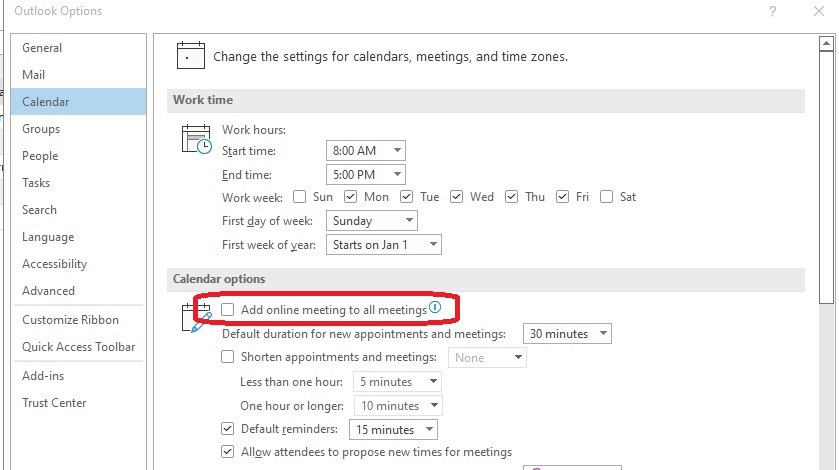
Now you are the master of your own meeting locations again!
How to Avoid Phishing Scams
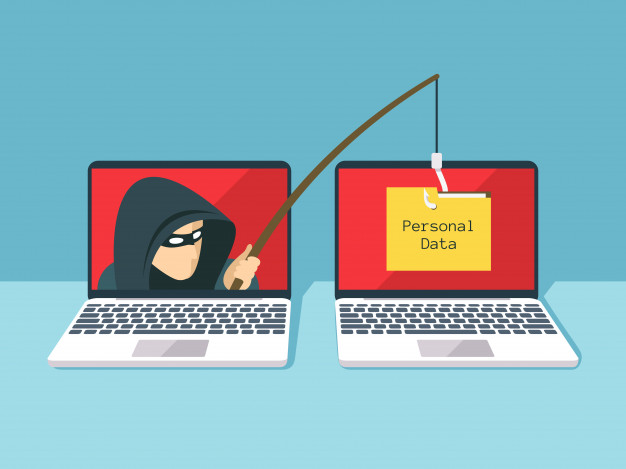
The most common way that business and personal accounts become compromised is through phishing and spear phishing attacks. These attacks are more common recently with the pandemic forcing people to work from home and often separated from their company’s established cybersecurity protocols. The majority of computers these days have some form of antivirus and firewall protection, but human nature is often the weakest link in the security wall. In this blog post, you will learn how to recognize a fake email and how to avoid becoming the victim of a phishing scam.
What is Phishing?
A phishing attack is an email sent by a bad actor that appears like a legitimate notice or request for information. Most of the time they appear as if they originate from Microsoft, Apple, a well-known bank, Paypal, Amazon, etc. The phishing email often announces a new feature or a request for the user’s information that requires the user to log into their account using their credentials. The links from these phishing emails lead to a very convincing (yet fake) website that appears legitimate. But when the user enters their information, the victim has essentially given the scammer their private credentials. There have been numerous high profile celebrities and politicians that have fallen for these scams.
—
The Impulsive Clicker
Most people, especially in a business environment, gets 10’s if not 100’s of new emails each day. We have become rather proficient at sorting through the spam and keeping the important ones. However, since we are dealing with a large volume of emails at one time it is easy to just open one from a familiar source and click on the link. Especially if the email is from a popular vendor or B2B company.
Phishing attacks take advantage of our human nature to be in a hurry and not carefully read what we are opening.
—
Advanced Tactics – Spear Phishing
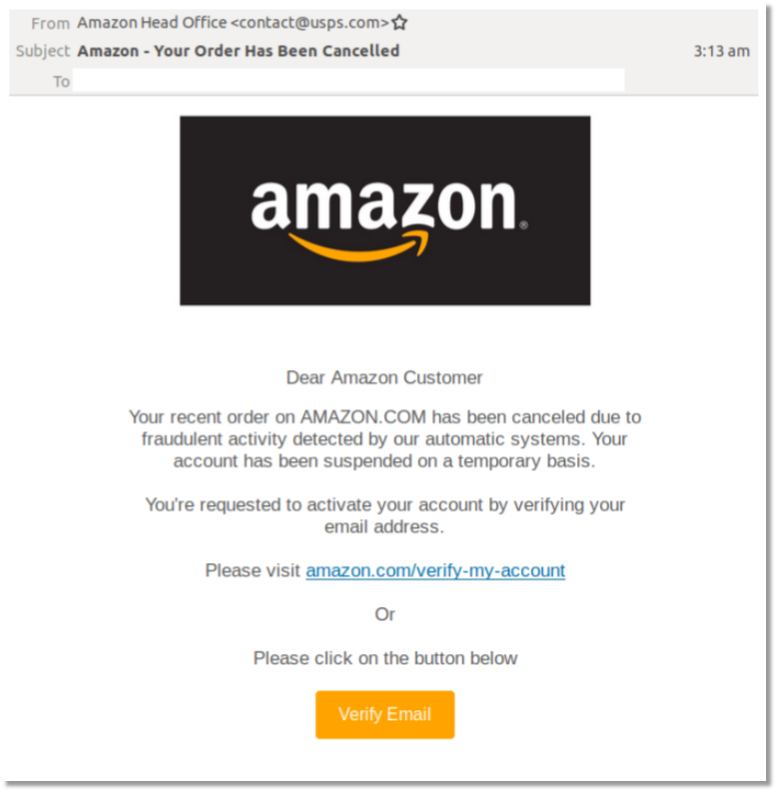
Phishing attacks have now evolved into a more sophisticated form called ‘spear phishing’. Someone who receives an account password reset email from eBay, but who never uses eBay will know right away that the email is not legitimate. But if the scammers can get a little more information, for example the name of a co-worker at the company, they can send their phishing email that looks like it comes from someone familiar, bypassing that first line of mental defenses. The more the scammers know about a recipient; their co-workers, vendors, clients, account numbers, etc. the more convincing they can make the phishing emails appear. This is called spear phishing.
Phishing in Other Ponds
Phishing attacks are now common in other communication media as well including text messages, phone calls and search engines.
Arming Yourself
How do you avoid being the victim of a spear phishing attack? There are few tactics that everyone needs to know.
1) Slow down and stop being the ‘impulsive clicker’. Look at not only the sender’s name, but also the email address. At the top of the email, you will see the name of the person and then their email address between < and >. For example John Smith <[email protected]>. If the address looks like this John Smith <[email protected]> then that should raise a big red flag!
2) If you get an email that looks like it is from a well-known organization, look for misspellings and poor grammar. Also, use your mouse to hover over any hyperlinks (do not click on them). Most of the time, fraudulent links will be obvious when you look at their address in the bar at the bottom. See example below:
This is supposedly from the “Microsoft Account Team”. Notice the inconsistent capitalizations, the incorrect usage of ‘expired’ and the email address it is sent from – doesn’t look like Microsoft.
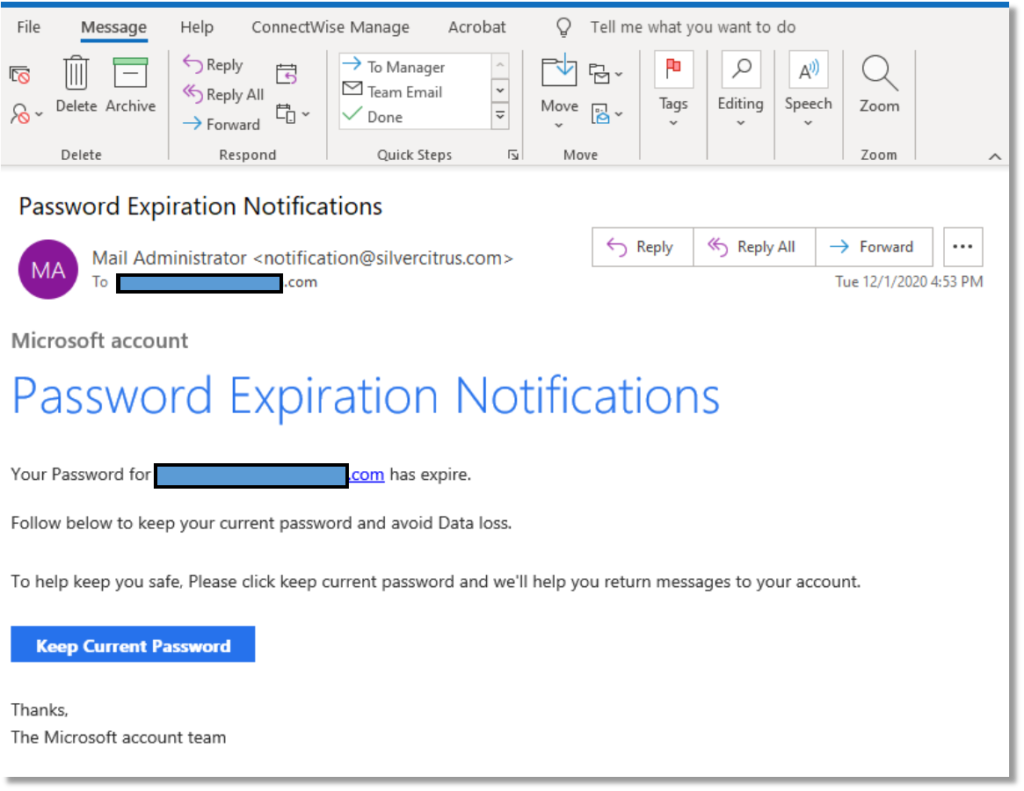
When the mouse is hovered over the “Keep Current Password” box, this is the link that appears:
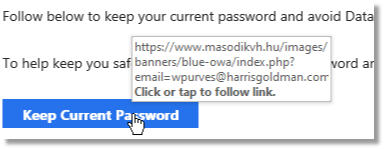
Doesn’t look like it directs to Microsoft…
3) Employing a robust enterprise-grade email filter is also a good way to avoid phishing attacks. Services like Barracuda Cloud Control have built-in mechanisms to block these types of scams.
4) One of the most effective IT security measures a company can make is to invest in regular Security Awareness Training. Almost all compliance regulations require companies to keep their employees updated and tested against the latest cyber threats on a regular basis.
For more information about what you can do to prevent a successful phishing attack, including a good email filtering service like Barracuda Cloud Control or regular Webroot Security Awareness Training, contact Infinity Networking for a FREE TRIAL of these services.
Click here for more information about Infinity Networking’s Cybersecurity solutions
—

Tips for Companies with Work-from-Home Employees
As the current global pandemic rolls along, most businesses are evaluating how they can continue to operate efficiently and successfully while keeping their employees safe. By now, many companies have allowed their employees to work from home, trying their best to stay in business.
Here are 6 helpful suggestions that businesses with work-from-home employees should consider:
Home Workspace
Just as a workplace provides a dedicated space for their employees; a cubicle, an office or some other area to set up a computer and spread out papers, the work-from-home employee needs a place to work as well. In the familiarity and comfort of their own homes, many employees may be working from their dining room table or the couch. Employees should be encouraged to try to set up their home workspace somewhere separated from the unavoidable sounds and distractions – preferably somewhere away from noisy televisions, family traffic and if possible, a room that has a closeable door. Of course, not everyone has this flexibility, but the more a work-at-home employee can emulate an office environment mindset, the more productive they will be.
Equipment
Few businesses have the ability to offer computers and peripherals for their employees to take home with them. Some workers have computers at home that they can use, but what if they don’t? Here are some options that employers may want to consider:
- Allow the employee to take home their work machine
- Purchase a refurbished workstation through a reputable vendor such as Dell for their work-at-home employees (https://www.dell.com/en-us/dfh/shop/dell-refurbished/cp/outlet)
- Lease a computer for the employee while the office is off-limits
- Headphones with a mic also help filter out extraneous noises
It is important that if a company wants their employees to be productive while working from home, they must ensure that they have adequate equipment to do their job.
Security
When an employee is working from home, there will be inherent security risks to mitigate. The easiest way to think about these security concerns is by using the three-fold ‘PPT’ model:
People – Who needs access to the company data, network and resources? And are those people trained to identify email phishing scams, securing their workstations with a password and not sharing their company access with other people?
Process – It may be helpful to have documented procedures for work-from-home employees; ensure they log out of their remote connections when they are not working, report any unusual emails or phone calls requesting access and have a go-to resource for any IT-related concerns or requests.
Technology – Besides a fully functioning workstation, remote workers should have a good antivirus and anti-malware solution. Do not assume that the employees’ home machines are protected or secure. If they are using their own equipment, it is especially important that the company require and possibly provide basic antivirus software for their employees. Having a trained IT professional evaluate and remediate the security of employees’ at-home workstations should be a part of any work-from-home strategy.
Accountability
Working from home is not like working in an office. There will inevitably be many interruptions, distractions and diversions that the employee will face on a daily basis. Realistically, it is very difficult to keep employees on task all day while they are not supervised, but accountability can be quantified if planned well. A manager or supervisor should evaluate the level of autonomy that they expect from their employees and work together to establish a reasonable set of goals per day, week or other timeframe. If the employee is meeting these predefined goals to the manager’s satisfaction, then accountability is easier to maintain.
There are a number of technology solutions to assist with accountability goals. Having a system to track daily and weekly tasks will not only keep the employee on target but will also allow the supervisor to review their progress throughout the timeframe. Here are some excellent tools to assist with task management:
1) Trello – a Kanban-style planning board which is effective in its simplicity and ease of use – and it’s free.
2) Google Workspace – good tool if your team uses Google’s online tools
3) Microsoft Teams – using the calendar and communication tools built into Teams will keep employers and employees on task throughout the day
4) Asana – project management for small teams with a free plan available
Video and Phone Tools
By now, most businesses have discovered that there are many options for video and phone conferencing. The most popular choices include Zoom, Teams and WebEx. If your company uses a conferencing tool such as these, here are a few helpful suggestions:
- Companies should be ready to assist their employees with the installation and use of video conferencing applications. This is new territory to many users and people may not have the technical ability to set these up on their own or know how to use them.
- Establish some basic ‘etiquette rules’ while using video conferencing. Most video conferencing applications monitor the microphones during a call and give preference to the ‘loudest’ voice. So remind users to take turns, be patient and only speak when they have something relevant to insert into the conversation.
- Encourage video conference users to be mindful of their surroundings. The camera picks up anything in its field of vision and the microphone amplifies sounds from the remote users’ environment. Users are better served by setting up their meetings in a room where the door can be closed and pets and children can be kept away.
Back to work plan, need office?
As companies are gearing up for an eventual return to the office, some may be considering whether they need to spend so much on office space if they can have capable remote users. Although the option is not ideal for all companies, there may be some advantage to have certain employees work from home either part-time or permanently. If a company is considering this arrangement, partnering with an experienced IT support company who has experience designing and implementing a remote workforce solution is highly recommended.
Infinity Networking can assist your company in creating an effective and secure work-from-home plan. Please Contact us today for more information.
