
Need Support? Call Us!
858-571-3154

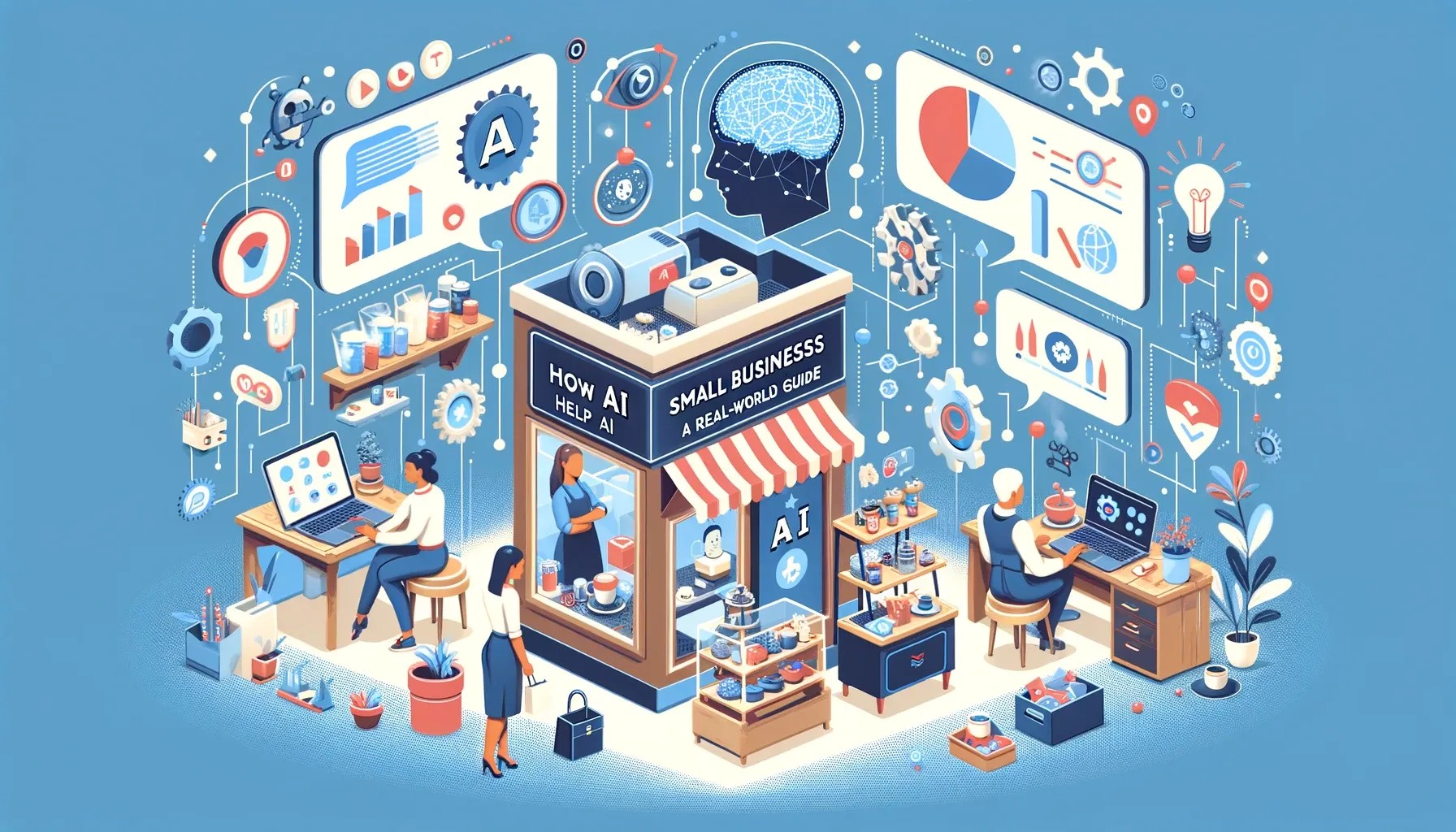
5 Realistic Ways AI Helps Businesses and 5 Ways It Falls Short
A beginner-friendly look at where AI delivers real value for businesses and where it fails to live up to expectations.

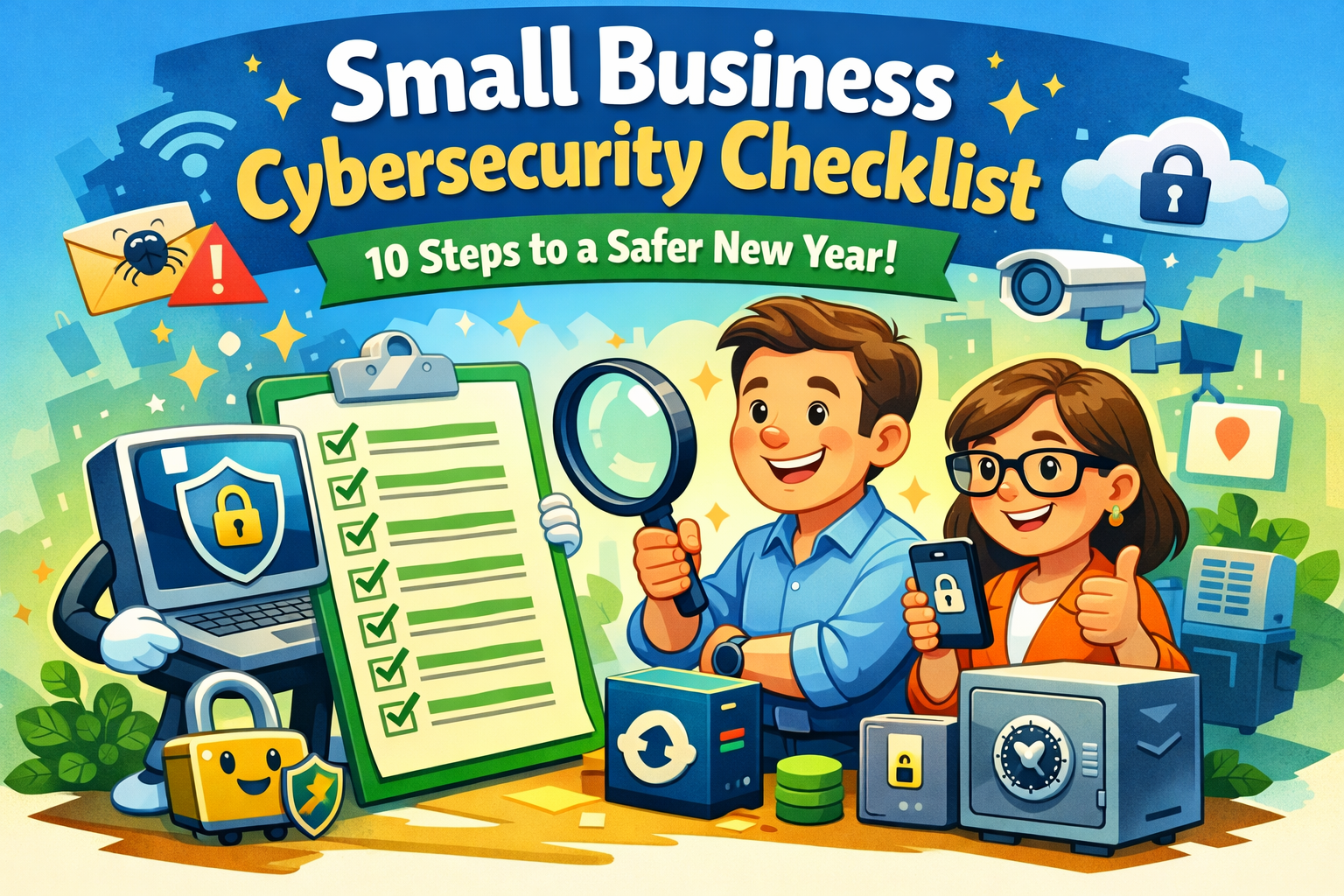
10 Security Checkups Every Small Business Should Do at the Start of the New Year
A practical guide for small business owners and employees outlining 10 essential cybersecurity checkups to reduce risk, prevent breaches, and start the new year secure.

The Best Tech Gifts for Busy Working Adults in 2025
The Best Tech Gifts for Busy Working Adults in 2025
Smart, practical, and productivity-boosting gifts they’ll actually use
Finding the perfect gift for a busy working adult can be tricky. They don’t need more clutter — they need technology that saves time, reduces stress and improves daily productivity. Whether you’re shopping for a remote professional, a frequent traveler or someone juggling work and life nonstop, the right tech gift can make a real difference.
In this 2025 tech gift guide, we highlight the best computer-related and tech gifts for busy professionals, focusing on tools that enhance productivity, organization, wellness and mobility.
Best Productivity Tech Gifts for Professionals
Elgato Stream Deck MK.2
Best for: Power users, remote workers, creatives
🔗 https://www.elgato.com/us/en/p/stream-deck/
The Elgato Stream Deck is a productivity powerhouse. With customizable buttons, professionals can launch apps, control meetings, automate repetitive tasks and manage workflows with a single tap. It’s ideal for anyone who lives in Zoom, Teams or creative software all day.
Why it’s a great gift:
✔ Saves time
✔ Reduces task switching
✔ Works across many apps
Bellroy Tech Kit Compact
Best for: Commuters, organized professionals
🔗 https://bellroy.com/products/tech-kit
This sleek, minimalist tech organizer keeps chargers, cables, earbuds and adapters neatly stored. It’s perfect for professionals who hate digging through bags to find essentials.
Why it’s a great gift:
✔ Premium materials
✔ Compact and travel-friendly
✔ Keeps work bags clutter-free
Best Mobile & Hybrid Work Tech Gifts
Apple iPad Mini
Best for: On-the-go professionals
🔗 https://www.apple.com/ipad-mini/
The iPad Mini strikes the perfect balance between power and portability. It’s great for note-taking, reviewing documents, reading or quick productivity tasks when a laptop feels too bulky.
Why it’s a great gift:
✔ Lightweight and powerful
✔ Supports Apple Pencil
✔ Excellent battery life
Cotopaxi Viaje Tech Organizer
Best for: Frequent travelers and hybrid workers
🔗 https://www.rei.com/product/251177/cotopaxi-viaje-tech-organizer
Designed for people constantly moving between home, office, and travel, this organizer offers durable construction and smart internal storage.
Why it’s a great gift:
✔ Travel-ready durability
✔ Easy access to tech gear
✔ Stylish and functional
Best Everyday Tech Gifts That Reduce Stress
Life360 Tile Bluetooth Trackers
Best for: Forgetful professionals
🔗 https://www.tile.com/
Tile trackers help busy adults keep track of keys, wallets, bags and more. If you know someone who’s always rushing out the door, this is a gift they’ll thank you for daily.
Why it’s a great gift:
✔ Saves time
✔ Easy smartphone integration
✔ Affordable and practical
Oura Ring (Gen 4)
Best for: Wellness-focused professionals
🔗 https://ouraring.com/
Busy adults often neglect sleep and recovery. The Oura Ring tracks sleep, stress, readiness and overall health insights in a sleek, non-intrusive design.
Why it’s a great gift:
✔ Discreet and stylish
✔ Actionable health data
✔ Ideal for long workdays
Best Tech Gifts Under $50
JBL Go 4 Portable Bluetooth Speaker
Best for: Home offices and casual workspaces
🔗 https://www.jbl.com/
Small but powerful, this speaker is perfect for background music during work hours or quick breaks between meetings.
Why it’s a great gift:
✔ Affordable
✔ Compact and durable
✔ Great sound for its size
Pinch Provisions Tech Kit
Best for: Stocking stuffers or budget gifts
🔗 https://pinchprovisions.com/
This handy kit includes essentials like screen wipes, cable wraps, webcam covers and more — all things busy professionals forget they need.
Why it’s a great gift:
✔ Budget-friendly
✔ Practical everyday items
✔ Compact and thoughtful
How to Choose the Right Tech Gift for Busy Adults
When shopping for working professionals, focus on gifts that:
Save time or reduce friction
Support hybrid or remote work
Improve organization
Enhance wellness without adding complexity
Avoid gimmicks — practical tech always wins.
Final Thoughts: Tech Gifts That Truly Matter
The best tech gifts for busy working adults aren’t flashy — they’re useful, reliable and seamlessly fit into daily routines. From productivity tools like the Stream Deck to wellness wearables like the Oura Ring, these gifts help professionals work smarter, not harder.
If you want to give a gift that actually gets used all year long, you can’t go wrong with smart, thoughtful technology.







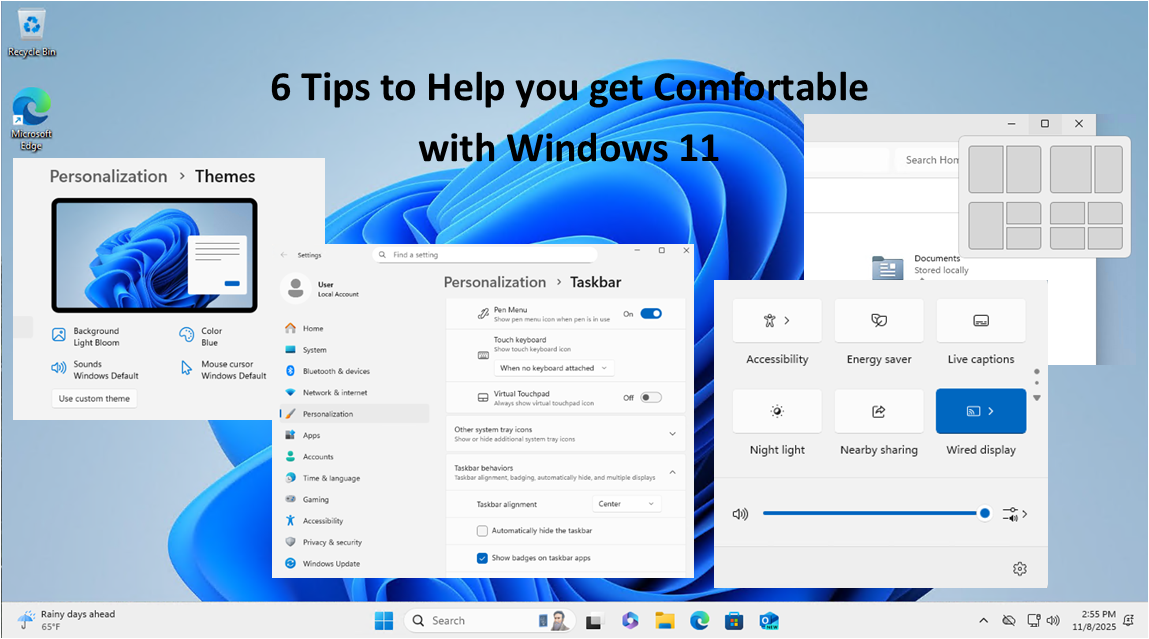
6 Tips to Help You Adjust to Your Recent Upgrade to Windows 11
6 Tips to Help You Adjust to Your Recent Upgrade to Windows 11
Just switched to Windows 11? Here are six simple tips to help you adjust to the new look and features — without losing your Windows 10 comfort zone.
1. Get Used to the New Start Menu
When you first open Windows 11, you’ll probably notice the Start button isn’t where it used to be — it’s now in the middle of the screen!
If that throws you off, you can move it back:
- Right-click the taskbar and choose Taskbar settings
- Scroll to Taskbar behaviors
- Change Taskbar alignment to Left
Boom — just like Windows 10 again.
2. Snap Layouts Make Multitasking a Breeze
If you like having multiple windows open (emails, browser tabs, spreadsheets), you now have Snap Layouts.
Just hover your mouse over the maximize button on any window — you’ll see layout options that let you neatly arrange your apps on the screen.
It’s super handy for side-by-side work or video calls.
3. Meet the New Quick Settings
Remember the old Action Center from Windows 10? It’s gone.
Now, just click the Wi-Fi, sound, or battery icons in the bottom-right corner — that’s your new Quick Settings panel.
From here, you can turn on Bluetooth, change brightness, or go into Focus mode to block distractions.
You can even customize it with the shortcuts you use most.
4. Make Windows 11 Feel Like “You”
One of the best things about Windows 11 is how personal it can look.
Go to Settings → Personalization → Themes and explore the built-in color schemes and wallpapers.
Or press Win + W to open the Widgets panel, where you can pin your favorite news, weather, or calendar items.
A few clicks and your desktop feels familiar again — but fresher.
5. Check Out the New Microsoft Store
The Microsoft Store has had a major overhaul. It’s faster, simpler, and now includes apps like Zoom, Canva, and even Android apps (through the Amazon Appstore).
It’s finally worth exploring — and a safer way to download software without hunting around random websites.
6. Take a Minute to Check Your Security
Windows 11 added more ways to keep your computer safe — but they’re easy to overlook.
Head to Settings → Privacy & security, and make sure you:
- Turn on Windows Hello for faster, password-free logins
- Enable BitLocker if you’re on Windows 11 Pro
- Use Smart App Control to block sketchy downloads
It only takes a few minutes, and it’s worth it for peace of mind.
Final Thoughts
Upgrading to a new version of Windows can feel strange at first — kind of like moving furniture in your favorite room. But once you know where everything is, Windows 11 starts to feel smoother, cleaner, and more modern.
Play around, personalize it, and before long, you’ll wonder how you ever used anything else. (okay, not really)

The End of Windows 10 — What You Need to Know and Do Now
The End of Windows 10 — What You Need to Know and Do Now
Microsoft has officially announced that support for Windows 10 will end on October 14, 2025. That means no more security updates, bug fixes, or technical support from Microsoft after that date*. If you’re still using Windows 10—at home or at work—it’s time to start planning your next move. Ignoring this deadline could leave your system vulnerable to security threats and software compatibility issues.
In this article, we’ll walk you through:
- Why this end-of-support matters
- How to determine if your PC can be upgraded
- What upgrade options are available
- Estimated costs involved
- Why moving to a supported operating system is essential
Why Does Windows 10 End of Support Matter?
Just like previous Windows versions before it, Windows 10 is reaching the end of its lifecycle. After October 14, 2025, Microsoft will no longer provide critical security patches*, leaving systems susceptible to viruses, malware, and zero-day exploits. Unsupported operating systems also risk compatibility issues with new software, hardware and drivers, reducing productivity and increasing frustration for users.
If your computer is connected to the internet—or even a local network—it’s a security risk to continue using an unsupported OS.
Can Your PC Be Upgraded?
Before making any decisions, you need to determine whether your current machine can be upgraded to Windows 11, Microsoft’s latest operating system. Microsoft provides a free tool called the PC Health Check app that evaluates your hardware and tells you if it meets the minimum requirements for Windows 11.
Key system requirements include:
- A compatible 64-bit processor (1GHz or faster, 2 or more cores)
- 4GB of RAM or more (8GB recommended)
- 64GB or more of storage
- UEFI firmware with Secure Boot**
- TPM 2.0 (Trusted Platform Module)**
You can download the PC Health Check tool here:
https://www.microsoft.com/en-us/windows/windows-11#pchealthcheck
If your PC doesn’t meet these requirements, you may need to consider replacing the device entirely.
Upgrade Costs and Options
If Your PC is Compatible:
- You can upgrade to Windows 11 for free if you have a valid Windows 10 license. Most users will simply download the installer from Microsoft or use Windows Update.
- Backup your files and settings beforehand, just in case.
If Your PC is Not Compatible:
- You’ll likely need a new computer. The good news is that entry-level Windows 11 PCs start at around $300–$500, with more powerful business and gaming systems ranging from $800–$2,000+.
- Many manufacturers are offering trade-in programs or discounts on new PCs to ease the transition.
* Extended Support Option (for Businesses):
Microsoft is offering a paid Extended Security Updates (ESU) program for organizations that cannot upgrade all machines by the deadline for $30. However, this is meant as a temporary solution (1 year) and won’t include feature updates or tech support. There is also a free ESU available, but it requires using Microsoft OneDrive to backup the Windows 10 system. See this article on theverge.com.
** Bypassing TPM 2.0 and Secure Boot Requirements:
There are ways of bypassing some of the earlier requirements of upgrading to Windows 11. Although a bit technical, you can read more about this at this website or contact an IT professional to perform the upgrade of ‘incompatible’ systems to Windows 11.
Why Upgrading Matters
1. Security:
Modern threats evolve constantly. Without updates, you’re a sitting duck for ransomware, spyware, and hackers.
2. Compatibility:
New software and apps will increasingly require Windows 11 or newer. Web browsers and productivity tools will start phasing out support for Windows 10.
3. Performance & Features:
Windows 11 includes better support for hybrid work, improved UI, virtual desktops, gaming enhancements, and optimized battery life for laptops.
4. Compliance:
For businesses, continuing to use unsupported software could violate data protection regulations and industry compliance standards (e.g., HIPAA, GDPR, PCI).
What Should You Do Now?
Check your PC with the PC Health Check tool.
Start backing up your data regularly.
Budget for a new PC if needed.
Plan for deployment and user training if you’re upgrading multiple systems in a business.
Stay informed—follow Microsoft updates for any changes or extensions to their timeline.
In Summary
October 14, 2025, is closer than it seems and the consequences of ignoring it are real. Whether you’re an individual user, a small business owner, or an IT professional, taking action now ensures a smooth transition and a secure computing future.
If you have questions about upgrading or selecting a new PC, consult a trusted IT provider like Infinity Networking or visit Microsoft’s Windows 11 page to get started. Don’t wait until your machine becomes a liability.

6 Ways Business Owners Can Start Using AI Today
6 Ways Business Owners Can Start Using AI Today
Artificial Intelligence (AI) is no longer just a futuristic concept—it’s a game-changing tool that businesses of all sizes can leverage to streamline operations, enhance customer experiences, and increase profitability. If you’re a business owner wondering how to integrate AI into your operations, this guide will show you how to use AI in business effectively. Here are six actionable steps to get started:
1. Automate Repetitive Tasks
AI-powered tools can handle mundane and time-consuming tasks such as data entry, email responses, scheduling, and invoicing. Tools like Zapier, Microsoft Power Automate, and AI-driven chatbots can free up valuable time, allowing you and your team to focus on strategic tasks that drive growth.
2. Enhance Customer Support with AI Chatbots
AI chatbots can provide instant responses to customer inquiries, improving customer satisfaction and reducing response times. Platforms like ChatGPT, Drift, and Intercom allow businesses to automate customer support, answer frequently asked questions, and even assist with sales inquiries.
3. Leverage AI for Data-Driven Decision Making
AI can analyze vast amounts of data to identify trends, predict customer behavior, and provide actionable insights. Business intelligence tools like Tableau, Google Analytics, and IBM Watson can help you make informed decisions based on real-time data, ultimately leading to smarter business strategies.
4. Optimize Marketing with AI-Powered Analytics
AI can significantly improve your marketing efforts by personalizing content, optimizing ad campaigns, and analyzing customer engagement. AI-driven tools like HubSpot, Hootsuite, and Persado use machine learning to enhance social media management, email marketing, and content creation.
5. Implement AI in Hiring and HR Processes
Recruiting and HR processes can be streamlined with AI-driven software that screens resumes, schedules interviews, and assesses candidate suitability. Tools like LinkedIn Talent Insights, HireVue, and Pymetrics help businesses find the right talent efficiently while reducing bias in hiring decisions.
6. Improve Cybersecurity with AI
Cyber threats are a growing concern for businesses, and AI can help safeguard sensitive information by detecting anomalies, preventing fraud, and mitigating risks. Solutions like Darktrace, Symantec, and IBM Security use AI-driven algorithms to monitor systems and identify potential security breaches before they cause damage.
Final Thoughts
Embracing AI in your business doesn’t have to be overwhelming. Start small by incorporating AI-driven tools that align with your business goals. Whether you want to enhance customer service, streamline operations, or improve marketing strategies, AI can help you stay competitive in today’s fast-paced digital landscape.
Ready to integrate AI into your business? Explore the available AI-powered tools and take the first step toward innovation today!
Are you new to AI? We offer online, self-paced courses to learn all about popular AI tools and how they are used. Sign up for our partnered training with Bigger Brains to learn about AI and many more topics!

How to Tell If an Email Is Legitimate or a Phishing Scam
How to Tell If an Email Is Legitimate or a Phishing Scam
In today’s digital age, email has become a vital communication tool for both personal and professional interactions. However, it has also become a preferred channel for cybercriminals looking to exploit unsuspecting users through phishing scams. These fraudulent emails are designed to trick recipients into divulging sensitive information, such as passwords, credit card details or other personal data. It is essential to know how to identify phishing emails to avoid falling victim to them. Here are some key tips to help you distinguish between legitimate emails and phishing attempts.
Check the Sender’s Email Address
One of the first red flags in a phishing email is the sender’s email address. While the sender’s name might look familiar, the actual email address may not match the legitimate domain. Scammers often use addresses that look like official ones but with slight alterations. For example, instead of a legitimate domain like “@amazon.com,” a phishing email might come from “@amaz0n.com” with a zero replacing the “o.” Always double-check the email address for any subtle differences. If the address doesn’t match what you expect from the sender, it’s a good sign the email might be a phishing attempt.
Look for Generic Greetings
Legitimate companies that you’ve interacted with typically use personalized greetings in their communications. If an email starts with “Dear Customer,” “Hello User,” or other vague language instead of addressing you by your actual name, it’s a red flag. Phishing scams often use generic greetings because they send out mass emails to as many people as possible, hoping a few will fall for the trap. A legitimate email from your bank or a service provider will likely use your full name or account information to confirm authenticity.
Examine the Content and Tone of the Email
Phishing emails often have a sense of urgency or use scare tactics to manipulate you into taking immediate action. They may claim that your account has been compromised, that there’s an urgent issue with your payment or that you need to verify your information to avoid suspension. Legitimate companies typically won’t ask for sensitive information (like your passwords or credit card details) directly through an email. Be cautious of any message that pressures you to click on a link or open an attachment urgently, especially if the request seems out of the ordinary.
Inspect the Links and Attachments
One of the most dangerous elements of a phishing email is its links or attachments. Before clicking on any link, hover over it to see the URL. A phishing link may look like a legitimate website at first glance, but if you inspect the full URL, you may notice it’s slightly altered or completely unrelated to the company. Similarly, avoid downloading attachments unless you are certain they are legitimate, as they can contain malicious software designed to steal your personal data or infect your device. If in doubt, visit the company’s website directly by typing the URL into your browser instead of clicking on a suspicious link.
Check for Poor Grammar and Spelling Mistakes
Reputable companies typically have teams of professionals ensuring that their emails are free from grammatical errors and spelling mistakes. Phishing emails, on the other hand, are often riddled with mistakes because they are sent out in bulk by scammers, sometimes from non-native English speakers. If an email is poorly written, lacks proper punctuation or contains strange phrasing it’s a good indicator that it could be a phishing scam. Take time to read the email carefully and look for inconsistencies that might give away its fraudulent nature.
Staying safe online requires a careful eye and a healthy dose of skepticism, especially when it comes to emails. By paying attention to the sender’s address, scrutinizing the greeting, inspecting the email’s content and being cautious about links and attachments, you can protect yourself from phishing scams. When in doubt, it’s always safer to contact the company directly through their official website or customer service to confirm the legitimacy of any communication. Being proactive and vigilant can help you avoid falling into the traps set by cybercriminals.
Understanding and Preventing Identity Theft in Small Businesses
Understanding and Preventing Identity Theft in Small Businesses
Identity theft is a growing concern for individuals and businesses alike. For small businesses, identity theft protection is particularly crucial, as the impact of such theft can be devastating, affecting not only the personal information of business owners but also the integrity and operations of the business itself. Understanding the ways identity theft can affect small businesses and implementing strategies to safeguard personal information is crucial in today’s digital age.
The Impact of Identity Theft on Small Businesses
Identity theft can significantly disrupt a small business’s operations. When an owner’s identity is stolen, it can lead to unauthorized transactions, drained bank accounts, and damaged credit scores. These financial losses can be crippling for a small business, potentially leading to cash flow problems or even bankruptcy. Additionally, identity theft can tarnish the business’s reputation, making customers and partners wary of engaging with a company perceived as insecure.
Beyond financial repercussions, identity theft can also lead to legal challenges. Small business owners may find themselves dealing with fraudulent loans or credit taken out in their name, requiring time-consuming and costly legal intervention to resolve. This can divert critical resources and attention away from running the business, further exacerbating the negative impact.
A Real-Life Example: Sarah’s Story
Consider the story of Sarah, a small business owner who ran a successful boutique marketing firm. One day, Sarah received a call from her bank alerting her to a series of unusual transactions on her business account. Despite her initial disbelief, it quickly became clear that someone had gained access to her personal and business banking details. The thief had not only made several large withdrawals but also opened new credit accounts in her name, racking up significant debt.
Sarah’s nightmare didn’t end there. She soon started receiving calls from creditors demanding payment for loans she had never taken out. Her business’s credit score plummeted, and she struggled to secure financing for new projects. The legal process to clear her name and recover her funds was lengthy and stressful, taking precious time away from her business operations. Sarah’s reputation also took a hit, as some clients became hesitant to work with her, fearing her business was not secure.
Safeguarding Personal Information
To protect against identity theft, small business owners must prioritize safeguarding their personal information. One of the most effective measures is to implement strong, unique passwords for all accounts and regularly update them. Utilizing a password manager can help manage and secure these passwords. Additionally, enabling multi-factor authentication (MFA) adds an extra layer of security, making it more difficult for unauthorized users to gain access.
Another crucial step is to be vigilant about sharing personal information. Business owners should be cautious about the information they disclose online or over the phone, especially on social media or through unsolicited emails and calls. It’s essential to verify the legitimacy of requests for personal information and to avoid sharing sensitive data unless absolutely necessary.
Monitoring and Quick Response
Regular monitoring of financial statements, credit reports, and account activity is vital in detecting signs of identity theft early. Business owners should review their bank and credit card statements frequently to spot any unauthorized transactions. Setting up alerts for suspicious activity can also provide real-time notifications of potential fraud. Additionally, obtaining and reviewing credit reports annually from major credit bureaus can help identify and address discrepancies promptly.
In the unfortunate event of identity theft, quick action is essential. Reporting the theft to financial institutions, credit bureaus, and law enforcement can help mitigate the damage. It’s also advisable to place a fraud alert or credit freeze on affected accounts to prevent further unauthorized activity. Taking these steps can help contain the fallout and begin the recovery process.
Identity theft poses a serious threat to small businesses, with the potential to cause significant financial and reputational damage. By understanding the risks and implementing robust measures to safeguard personal information, small business owners can better protect themselves and their enterprises. Vigilance, strong security practices, and prompt response to any signs of identity theft are key to minimizing the impact and ensuring the continued success of the business. Sarah’s story serves as a cautionary tale, highlighting the real-world consequences of identity theft and underscoring the importance of proactive protection measures.
10 Tips for Maximizing Business Productivity with Windows 11
10 Tips for Maximizing Business Productivity with Windows 11
In the ever-evolving landscape of technology, businesses are constantly seeking efficient solutions to streamline their operations. With the release of Windows 11, Microsoft has introduced a host of features tailored to enhance productivity and user experience. From improved multitasking capabilities to enhanced security features, Windows 11 productivity tips for businesses offer a plethora of tools that can benefit businesses of all sizes. To help you make the most out of this operating system, we’ve compiled a list of 10 essential tips:
- Familiarize Yourself with the New Interface: Windows 11 comes with a refreshed interface, featuring a centered Start menu, rounded corners, and a simplified design. Take some time to familiarize yourself and your team with these changes to navigate the operating system seamlessly.
- Utilize Snap Layouts and Snap Groups: Enhance multitasking efficiency by using Snap Layouts and Snap Groups. These features allow you to organize and resize windows on your desktop, making it easier to work with multiple applications simultaneously.
- Explore Virtual Desktops: Virtual Desktops in Windows 11 enable you to create separate desktop environments for different tasks or projects. This feature can help reduce clutter and improve focus by keeping relevant applications and files grouped together.
- Optimize Taskbar Settings: Customize your Taskbar to suit your workflow preferences. Pin frequently used apps, rearrange icons for easy access, and enable Taskbar previews to preview open windows with a hover of the mouse.
- Take Advantage of Microsoft Teams Integration: With Microsoft Teams integration directly into the Taskbar, collaborating with colleagues has never been easier. Quickly start or join meetings, chat with team members, and share files without switching between applications.
- Enhance Security with Windows Hello: Strengthen security measures by utilizing Windows Hello for password-free sign-ins. Windows Hello offers biometric authentication options such as facial recognition or fingerprint scanning, providing an extra layer of protection for sensitive data.
- Stay Organized with Widgets: Windows 11 introduces Widgets, providing personalized content and information at a glance. Customize Widgets to display relevant news, weather updates, calendar events, and more, keeping you informed and organized throughout the day.
- Explore Enhanced Accessibility Features: Windows 11 incorporates improved accessibility features, making it easier for all users to interact with the operating system. Explore options such as voice typing, magnifier improvements, and text suggestions to enhance accessibility for employees with diverse needs.
- Backup and Recovery Options: Protect your business-critical data by utilizing built-in backup and recovery options in Windows 11. Set up regular backups to cloud storage or external drives, ensuring that your data remains safe in the event of system failures or data loss incidents.
- Stay Updated: Keep your operating system up to date with the latest security patches and feature updates. Regular updates not only ensure optimal performance but also help protect your business from emerging threats and vulnerabilities.
Windows 11 offers a plethora of features and tools designed to enhance productivity and efficiency for businesses. By familiarizing yourself with these essential tips and leveraging the capabilities of Windows 11 to their fullest extent, you can optimize your workflow, improve collaboration, and stay ahead in today’s competitive business landscape. Embrace the power of Windows 11 and unlock new possibilities for your business success.
The Power of Imaging: Why Business Owners Should Choose Imaging Backups Over File Backups
In the digital age, data is the lifeblood of businesses. From customer information to financial records, the loss of data can be catastrophic. That’s why backup solutions are critical. But not all backups are created equal. While file backups are common, imaging backups vs. file backups for businesses offer a superior level of protection. In this article, we’ll explore why business owners should consider using imaging backups over file backups.
Comprehensive Protection
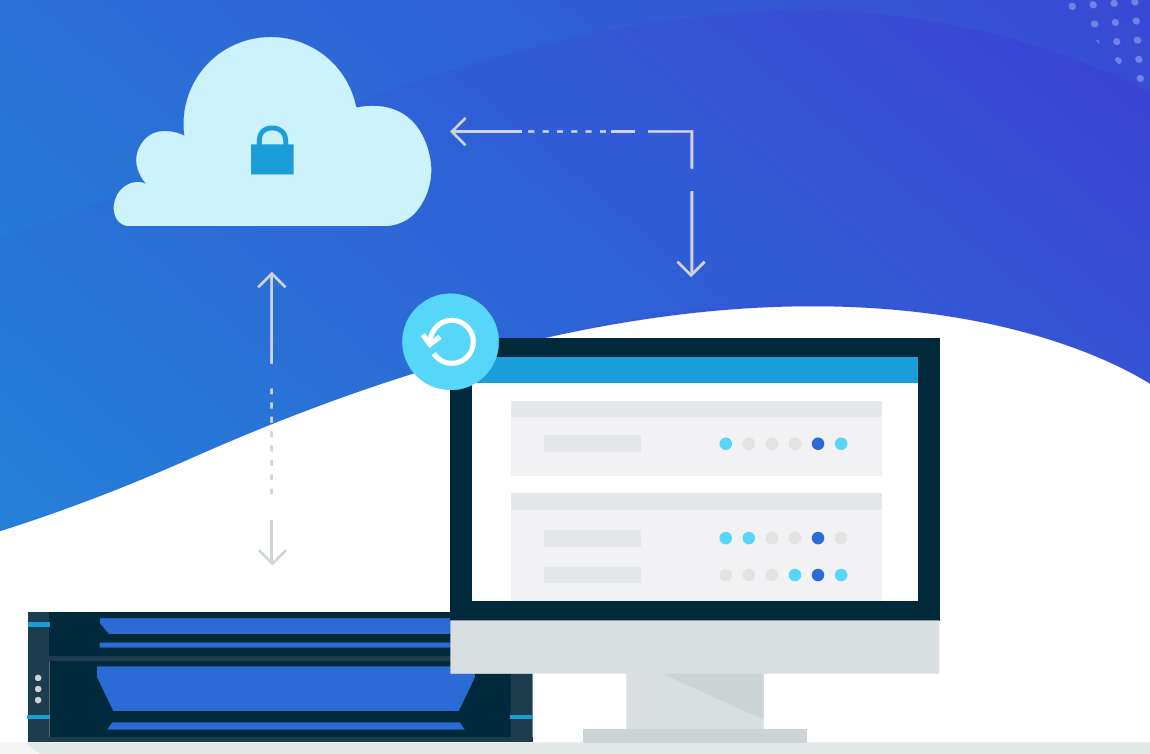
Imaging backups provide comprehensive protection by capturing an exact copy of your entire system, including the operating system, applications, and settings. This means that in the event of a disaster, you can quickly restore your entire system to its previous state, minimizing downtime and ensuring business continuity. With file backups, you’ll need to reinstall the operating system and applications before restoring your files, which can be time-consuming and prone to errors.
Faster Recovery
In the event of a disaster, time is of the essence. Imaging backups allow for faster recovery times because they capture the entire system in a single image file. This means that you can quickly restore your system to its previous state without having to reinstall the operating system and applications. With file backups, you’ll need to restore each file individually, which can be time-consuming and prone to errors.
Simplified Management
Imaging backups also simplify the management of your backup solution. With file backups, you’ll need to manage multiple backup sets for each file, which can be cumbersome and prone to errors. Imaging backups, on the other hand, capture the entire system in a single image file, making it easier to manage and ensuring that all of your data is protected.
Greater Flexibility
Imaging backups also offer greater flexibility when it comes to restoring your system. With file backups, you’ll need to restore each file individually, which can be time-consuming and prone to errors. Imaging backups, on the other hand, allow you to restore your entire system to its previous state in a single step, ensuring that all of your data is protected and minimizing downtime.
Enhanced Security
Finally, imaging backups offer enhanced security by capturing an exact copy of your entire system, including the operating system, applications, and settings. This means that in the event of a security breach, you can quickly restore your system to its previous state, minimizing the impact on your business. With file backups, you’ll need to reinstall the operating system and applications before restoring your files, which can leave your system vulnerable to further attacks.
In conclusion, imaging backups offer a superior level of protection for your business data. By capturing an exact copy of your entire system, including the operating system, applications, and settings, imaging backups provide comprehensive protection, faster recovery times, simplified management, greater flexibility, and enhanced security. For these reasons, business owners should consider using imaging backups over file backups to ensure the safety and security of their data.
Infinity Networking offers full workstation and server imaging services that create regular local and cloud-based images of critical systems.
